Documentation
Using the editor.
Everything you need to go from a floor plan to a signed-off coverage drawing, in the order you will need it.
Getting started
The editor runs in any modern browser at cameracad.com/editor; there is nothing to install. Sign in to keep your work: documents are saved to your account, open on any machine, and keep their history on the server. Every document is a sheet, an infinite, snapped drawing surface in real units. Pick metric or imperial in the grid settings; every length, range and cable total follows.
The screen has four parts: the tool bar, the canvas, the Inspector on the right (settings for whatever is selected, or for the armed tool), and the File menu at the top for new, open, rename, share and print. Hover a tool for a short description of how to use it.
Bringing in the plan
- PDF, DWG and DXF arrive as vector geometry: walls and lines you can snap to, locked as a reference so you do not move them by accident. Pick Floor plan and click empty paper to upload, or drag the file onto the canvas.
- Images (a scan, a photo of the plan on the site wall) become an underlay under the grid. Drag to place, pull the handles to scale, the ring to rotate, and crop away scanner edges.
- Set true scale by clicking two points of a known distance and typing the length. Do this before placing any camera: every range is computed in real units. What to check first on a new plan.
- Outdoor sites: the Map tool searches an address and places satellite or street imagery at true scale, with nothing to calibrate.
- 3D models (glTF, OBJ, FBX, IFC and others) are cut into a plan at plan height, one layer per part of the model.
Drawing what blocks the view
What you draw is what occludes. Walls, columns, doors, windows and stairs are architectural parts: cameras treat them as solid, and doors and windows cut openings in the walls they sit on. Trace only as much as the survey needs: the walls and anything tall enough to hide a person.
| Tool | Key | How |
|---|---|---|
| Wall | W | Drag between two grid points. |
| Door | D | Drag the opening along a wall, hinge to jamb. Flip picks the side. |
| Window | N | Drag along a wall line. |
| Opening | — | Drag a gap in a wall, no door. |
| Column | — | Drag a footprint, or click for a small one. |
| Stairs | S | Drag a straight flight in the direction of travel. |
| Rectangle, ellipse, pen, line, arrow, text | R O P L A T | Annotation shapes; they do not block cameras. Polygon and Outline are in the Tools panel. |
| Measure | M | A dimension line that stays on the sheet. Shift locks the angle. |
Placing cameras
Pick Camera (C) and drag from the mount point along the camera's sightline, or click to plant one. Then choose the model in the Inspector: the camera picker searches the catalog of 25 brands and over 15,000 models by name, brand, housing and resolution, and shows each one's angle and DORI ranges before you commit. A varifocal lens gets a focal-length slider; the cone follows it.
In the Inspector, set the mounting height and tilt. Together with the vertical angle they decide where the image meets the floor, and so the blind strip under the camera. For a camera the catalog does not have, choose a custom model and enter its field of view and resolution.
To check what a camera will really resolve, the Person tool (H) stands a real scanned figure on the plan; the 3D preview shows them at their true size.
Reading coverage and DORI
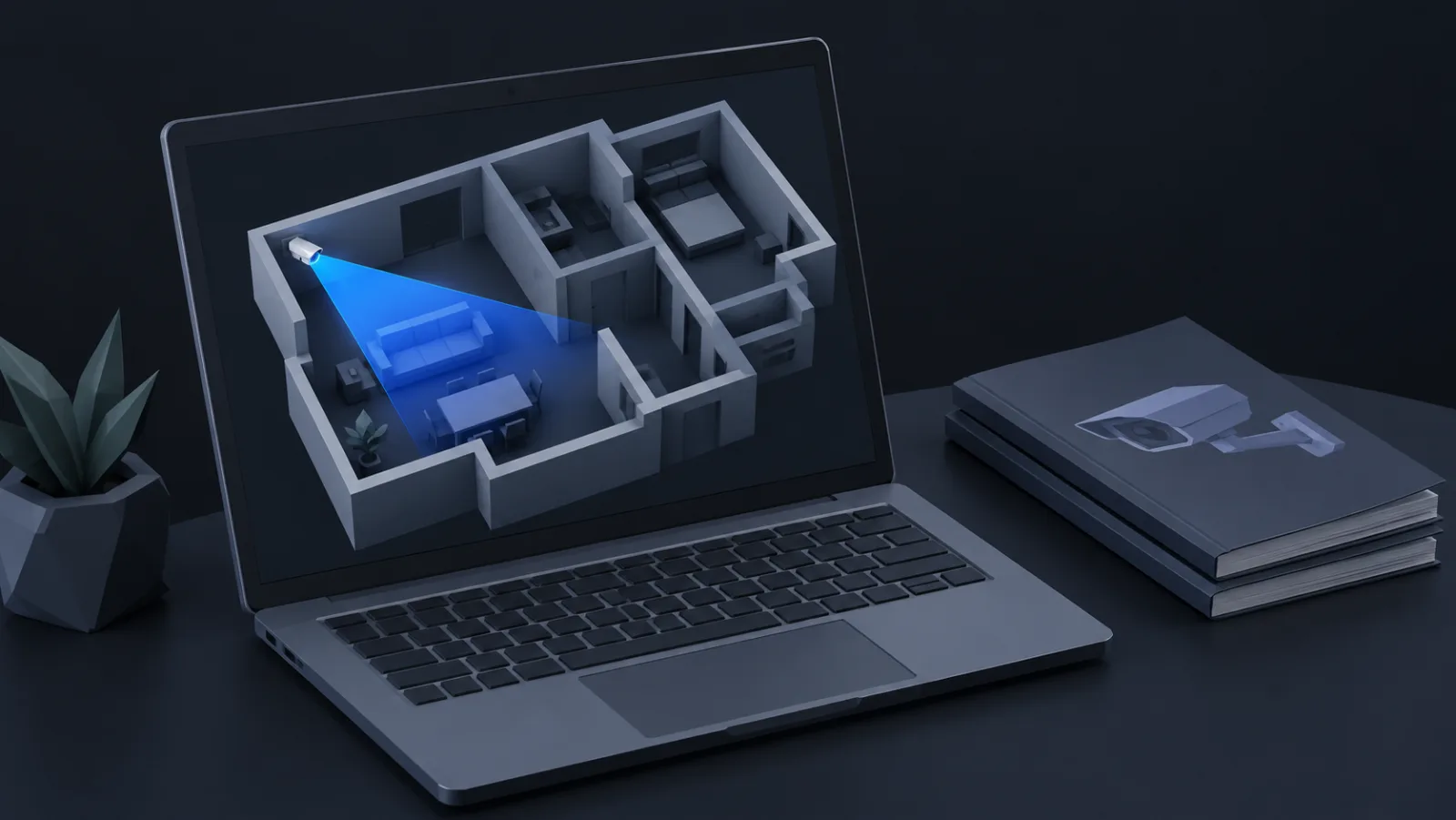
- The cone is ray-cast against every wall and column you drew, so it stops where the view does.
- DORI rings inside it show where the camera can identify, recognise, observe and detect, from the model's lens and sensor at the focal length you set. DORI, explained.
- View modes: Covered tints all the floor at least one camera sees; Blind tints everything none does. Move a camera and the tint follows live.
The 3D preview
A selected camera opens its own view from its mounting height, rendered from the plan: the walls you drew, stood up to height, with any people you placed. Switch the overlay to colour each surface by the DORI tier it falls in, or show a single tier. It is the quickest way to answer a client's "what will we actually see from there?"
Recorders and cables
Pick Recorder to place a recorder; it lands on its own layer. Set channels, storage and bitrate in the Inspector, then wire cameras to it, from the recorder or from a selected camera. Cables are routed automatically and stay editable; the plan reads out cable lengths with slack, channel use and retention in days. Sizing storage and cable runs.
Sharing and working together
Share in the top bar invites people by email or creates a link, each as Can edit or Can view. Roles set on a folder apply to everything inside it. Viewers open a link without an account; editors need a free one, so every change carries a name. Everyone editing at once sees each other's cursors, and each person's undo covers only their own changes.
Printing a scaled drawing
Pick Print area and drag a print frame on the sheet; it snaps between standard paper sizes and architectural scales, and stays on the sheet so the next print frames the same area. Click inside it, or press ⌘ P, to print with frame, title block and scale. Pro plans put your own logo in the title block.
Shortcuts
| Action | Keys |
|---|---|
| Select tool | V, or Esc |
| Pan | hold Space and drag, or two-finger scroll |
| Zoom | mouse wheel, or pinch |
| Undo / redo | ⌘ Z / ⌘ ⇧ Z |
| Copy / paste | ⌘ C / ⌘ V |
| Select all | ⌘ A |
| Delete selection | Delete or Backspace |
| ⌘ P | |
| Cancel | Esc |
On Windows and Linux, Ctrl takes the place of ⌘.
More help
The FAQ answers the common questions, the glossary defines the terms, and support is a message away.